regain documentation
Run the Alpaca server
Use a browser to configure equipment on the USB host, then connect imaging clients locally or across a trusted LAN.
One server for the whole rig
Need to republish ASCOM or combine sources? See the 0.6 Hub development preview. The standalone server described here provides native hardware integrations; the preview adds shared virtual devices.
Place a small computer beside the telescope and run one regain Alpaca server for camera slots, CAA and Falcon V2 rotators, an EFW filter wheel, EAF, FocusCube3 and ETA focusers, and an OFP2 cover/flat panel. NINA and other Alpaca-capable clients connect over the LAN while setup stays in the browser.
The Rust server and device workers need no .NET runtime, desktop UI, or vendor accessory applications. Linux x86-64 and ARM64 builds suit small headless hosts; Windows and macOS builds are also available. One server manages the equipment through separate workers that isolate device access. Physical USB validation on Linux/macOS remains incomplete.
All listed accessory drivers are SDK-free. Supported camera models can use Direct USB; broader camera coverage uses the SDK backend. This universal server implements the supported hardware directly and does not proxy arbitrary installed ASCOM drivers.
- Install the matching build and give the host account access to USB, HID, and serial devices; see platform requirements.
- Keep the server, workers, and required SDK library together. Use an absolute
--profilespath for unattended startup. - Bind to the host’s LAN address, configure device serials in browser setup, and enable LAN discovery.
- Run the server under your own systemd, launchd, or Windows startup task. No startup service is installed automatically.
Give each physical device one owning frontend. Multiple Alpaca clients share the server’s device connection, but native NINA, native ASCOM, and vendor applications must release that same USB or serial device first. See FocusCube3 sharing boundaries.
Start on Windows
Extract the complete Windows ASCOM ZIP, or use the files installed by the ASCOM installer. From that folder:
.\regain-alpaca.exe --port 11111Open http://127.0.0.1:11111/setup on the server computer. Keep the server, Rust workers, and SDK library together. Alpaca itself needs neither .NET nor Windows COM registration.
Configure devices
- Choose a camera slot or accessory setup page.
- Find devices, select the physical serial, and save settings. Only configured devices appear in discovery.
- For accessories, use Connect for setup to inspect settings or test motion. Choose Disconnect setup when finished.
- Discover the server in your Alpaca client or enter its address and HTTP port. Windows ASCOM clients can use the Platform’s Alpaca discovery/Chooser support.
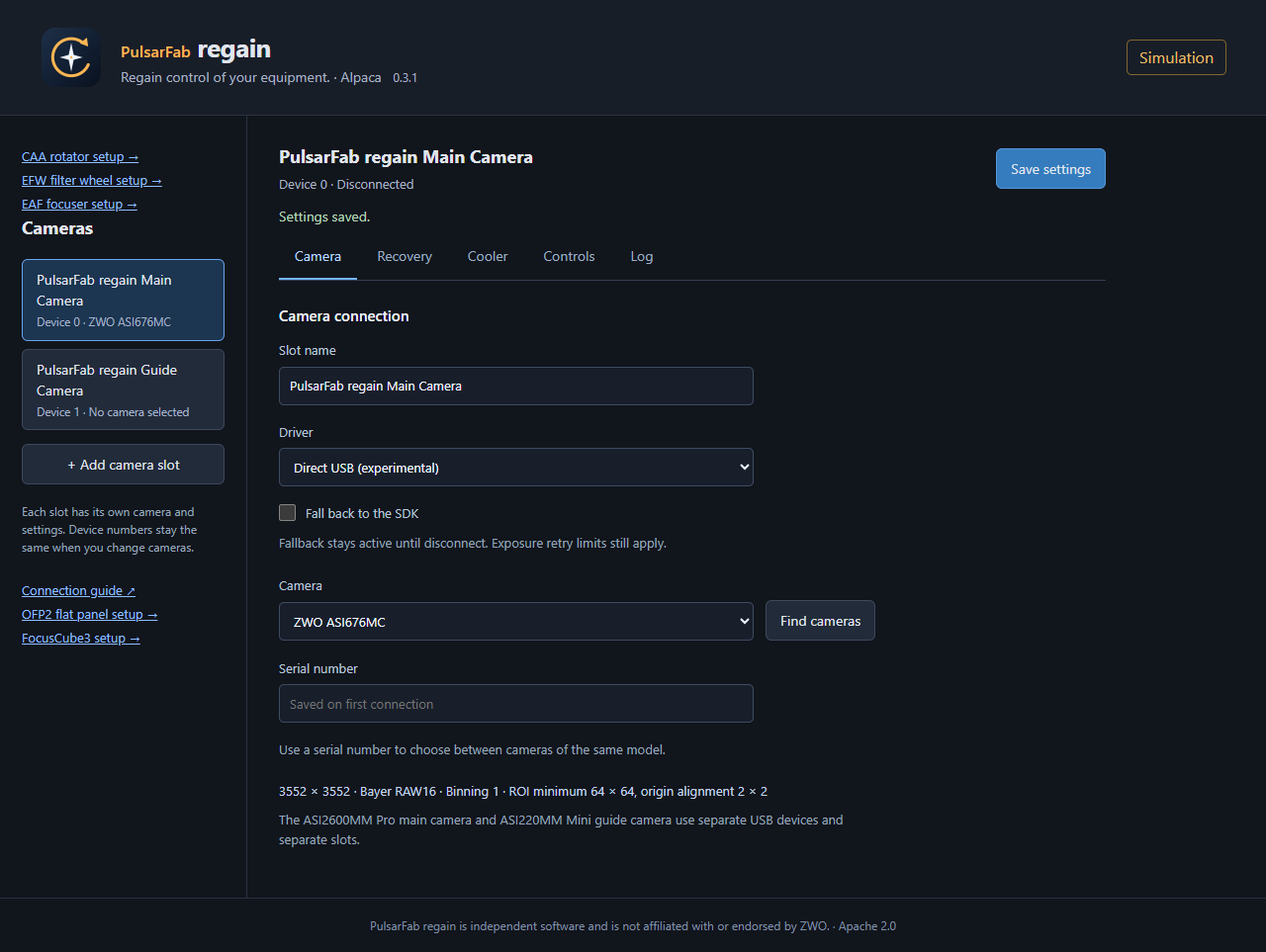
| Device | Setup path after host:port |
|---|---|
| Cameras | /setup |
| CAA, Falcon V2 | Add a slot under /setup/rotators; open its setup link. |
| EFW | /setup/v1/filterwheel/0/setup |
| EAF, FocusCube3, ETA M54 | Add a slot under /setup/focusers; open its setup link. |
| OFP2 | /setup/v1/covercalibrator/0/setup |
Camera, focuser and rotator slots have stable device numbers and UUIDs independent of discovery order. Disconnect clients before editing setup or scanning USB.
Add separate focuser or rotator slots for multiple devices, including repeated models. Each has its own name, serial or port selection, and stable Alpaca number. Existing CAA slot 0 keeps its URL and UUID. Numbers identify instances, not models, and do not change with USB discovery order. Existing EAF/FocusCube3/ETA profiles keep their saved numbers and UUIDs when upgrading. See multiple focusers and migration.
Connect across your LAN
The default listener binds to 127.0.0.1. Bind to the USB host’s LAN IPv4 address to allow remote clients:
.\regain-alpaca.exe --listen 192.168.1.10 --port 11111Replace the example address with your host’s address. Allow the HTTP TCP port and UDP 32227 through the host firewall for discovery. If discovery is unavailable, connect by address. Remote clients do not need the host’s USB drivers.
Linux and macOS
Build with stable Rust and the platform C build tools:
cargo build --workspace --release --locked
./target/release/regain-alpaca --port 11111
Unsigned regain-rust-* CI artifacts also bundle workers and the matching ASI SDK library. Linux builds target Ubuntu 24.04; macOS builds target macOS 15 and are not notarized. Physical USB testing on these systems remains incomplete.
The host account needs access to USB/HID devices and serial ports. Linux serial ports are commonly /dev/ttyACM*; macOS uses /dev/cu.usbmodem*. Consult the platform permissions and runtime guide.
Regain uses one regain-device hardware executable beside the server. Vendor/device selectors choose the protocol; separate worker processes preserve device isolation. Deploy the server and workers from the same build. See CLI commands and crate boundaries.
Useful options
--profiles PATH: choose an explicit settings file.--workers DIRECTORY: locate workers and the default SDK library.--sdk PATH: override the camera SDK library.--no-discovery: disable UDP discovery.--simulate: use explicit simulation for equipment checks without USB access.
Keep the process running while clients are connected. For unattended startup, configure your own Windows task, systemd service, or launchd job with an absolute profile path and the right device permissions.